Getting started
Every screen from signing up to your first post, with a picture of each one. Most of it is reading what we wrote rather than writing anything yourself.
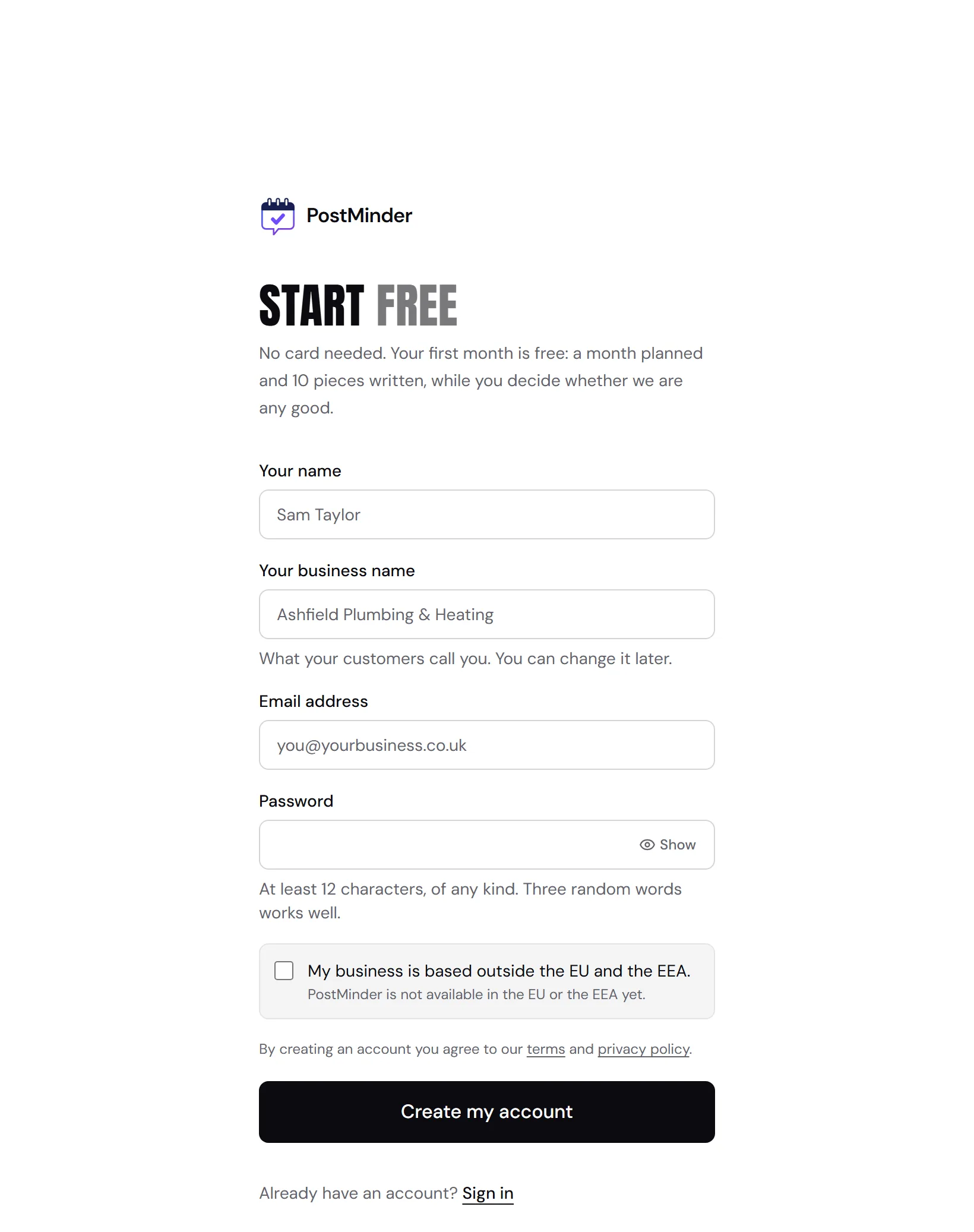
1. Create your account
Your name, what your business is called, an email address and a password. No card, and nothing else to fill in. The business name is the one thing worth getting right here, because it goes into everything we write afterwards.
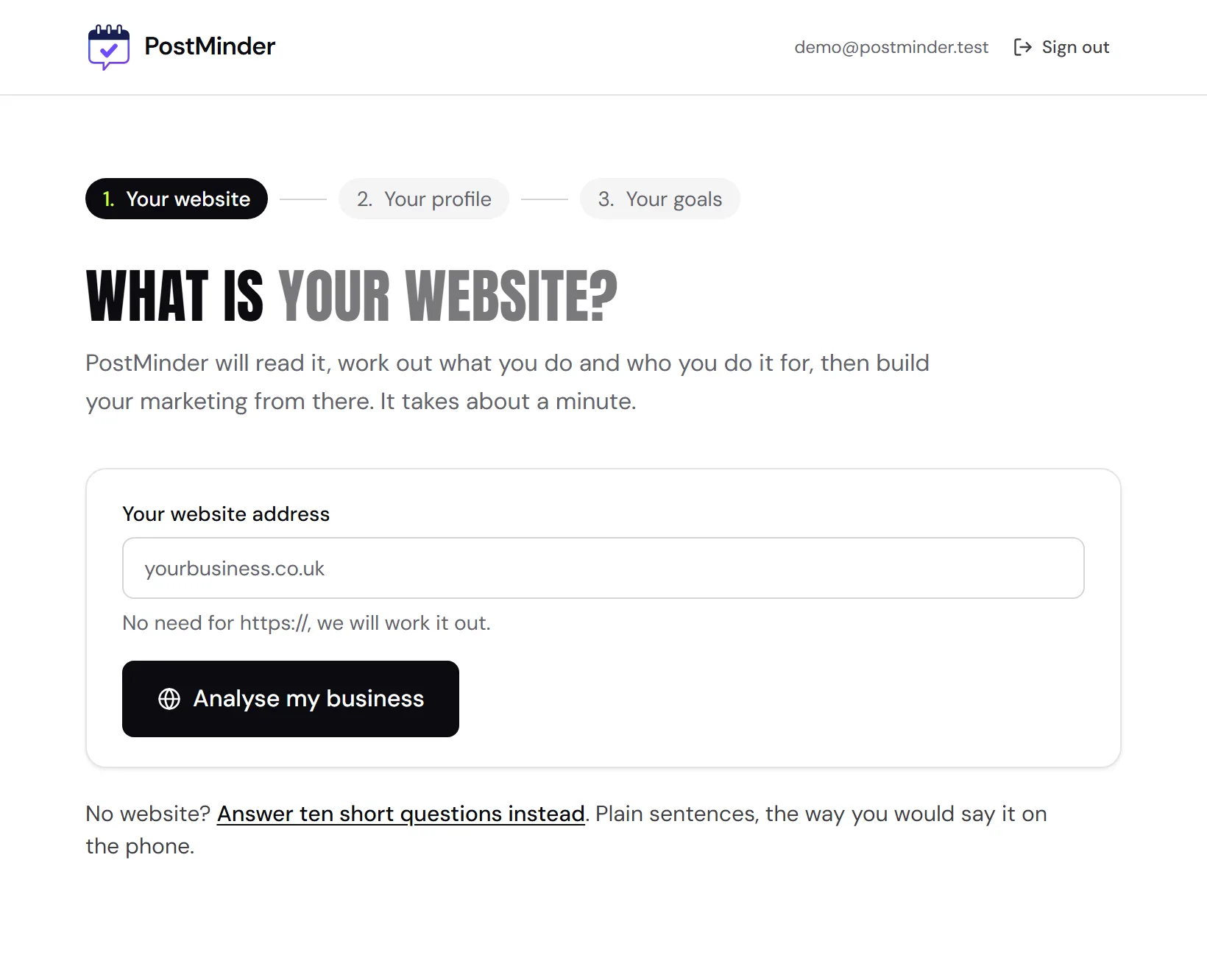
2. Give us your website, or say you have not got one
Type your web address and press "Analyse my business" and we read the site the way a new customer would. No website is an ordinary answer rather than a problem: press "Answer ten short questions instead" and write the answers in plain sentences.
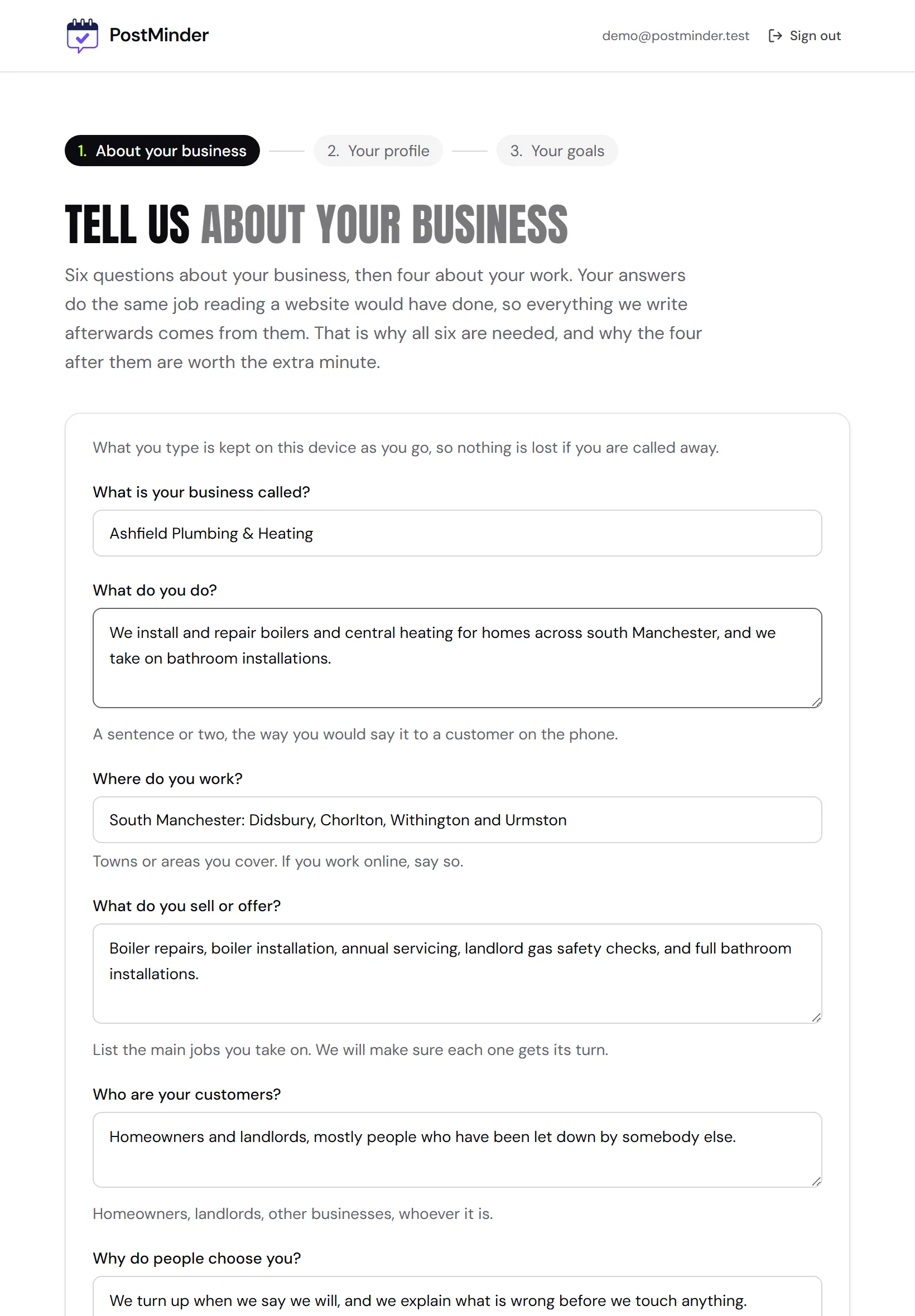
3. Answer the first six questions
If you have not got a website, ten questions do the same job. The first six are about the business itself: what it is called, what you do, where you work, what you sell, who buys it and why they choose you. Plain sentences, the way you would say it to somebody on the phone.
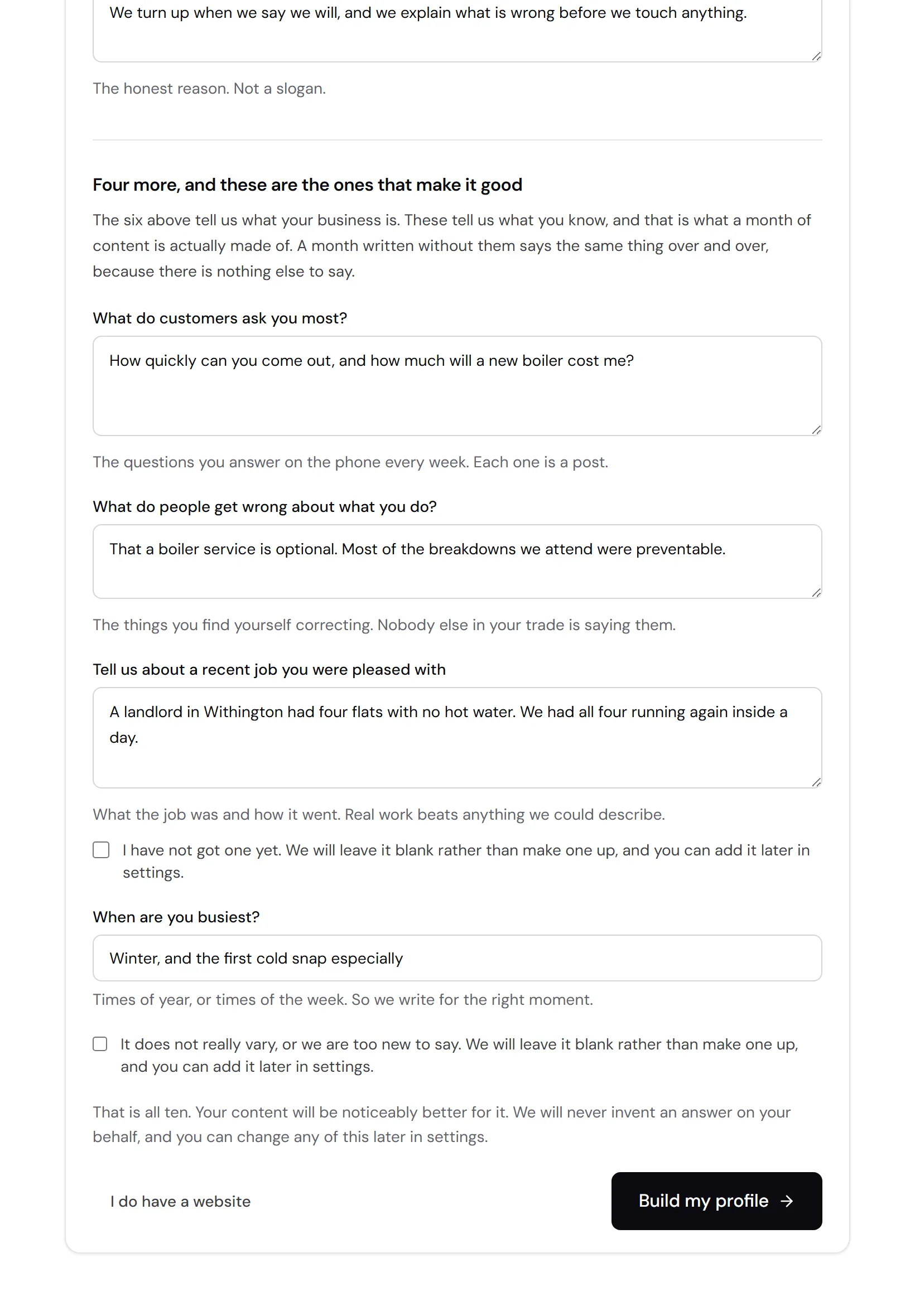
4. Then four about the work itself
What customers ask you most, what people get wrong, a recent job you were pleased with, and when you are busiest. These four are what stop a month of content repeating itself. If the business is too new to have a job worth describing, tick "I have not got one yet" and we leave it blank rather than making one up. Then press "Build my profile".
5. Check what we learned
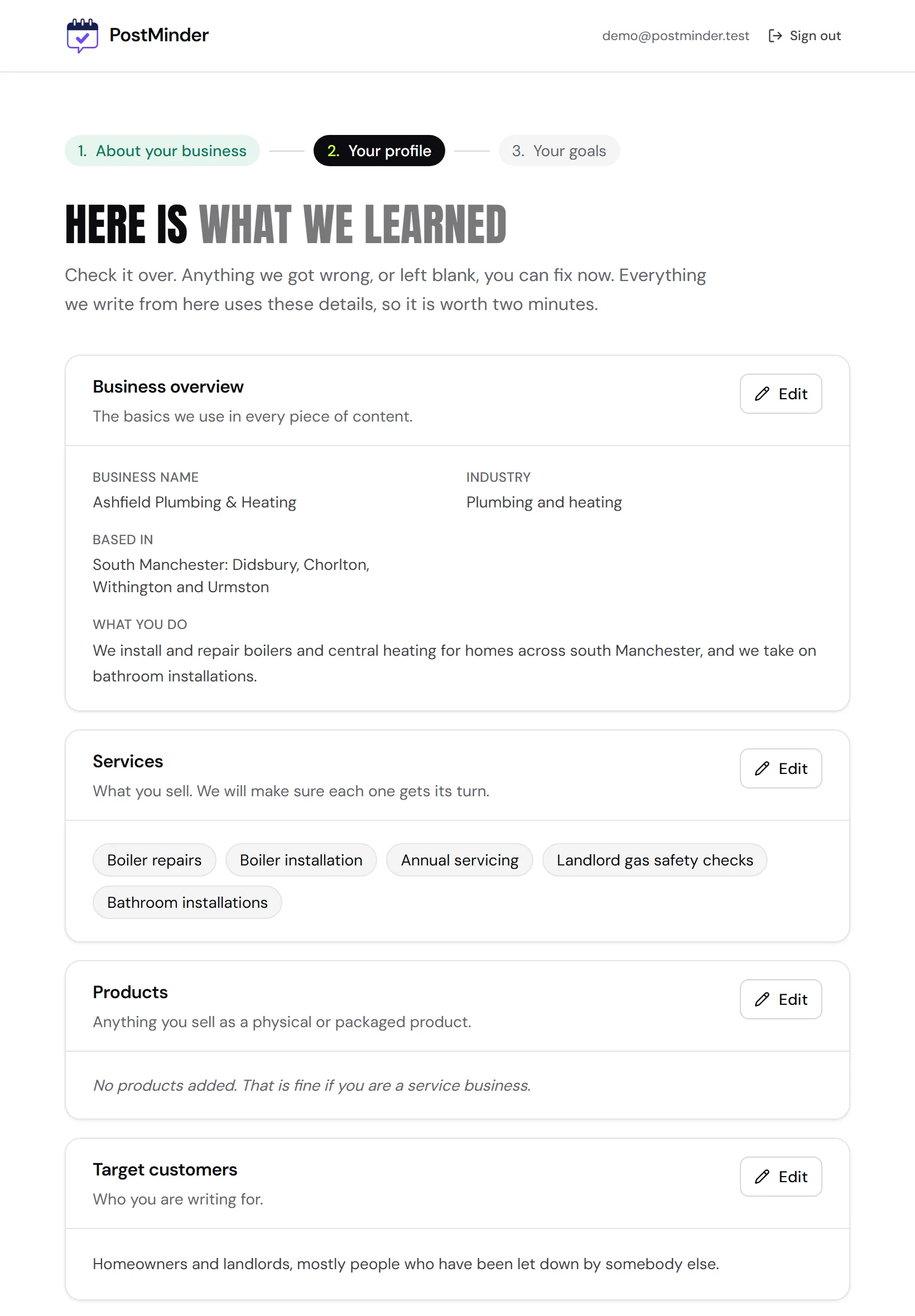
We turn your answers into a profile and show it to you before writing anything. Read it over and press Edit on anything we got wrong. Where we were not told something we leave it blank rather than guessing, so "Not set" is a real answer and not a failure.
6. Choose what you want and when
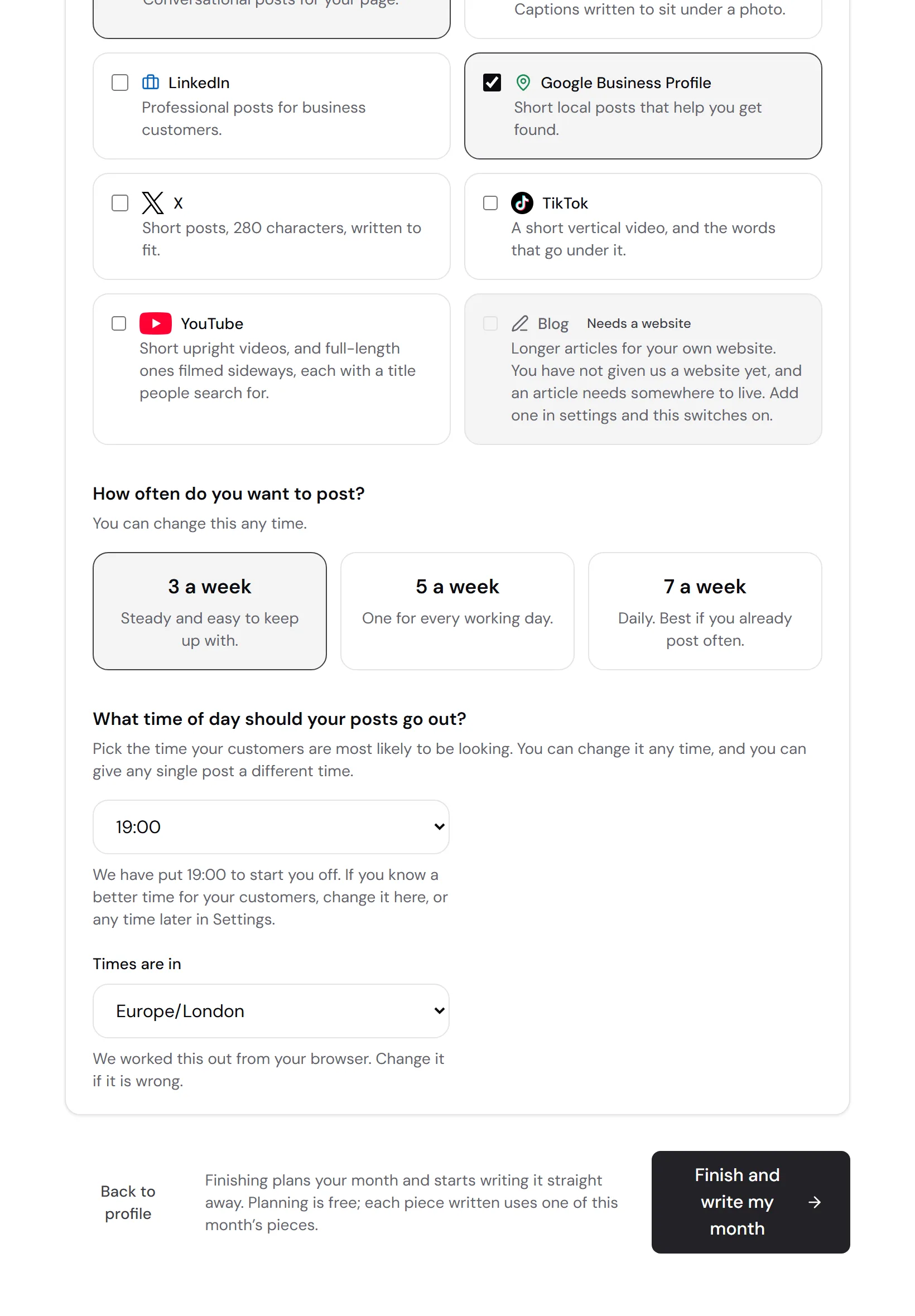
What you are trying to get out of it, which channels you want, how often, and what time of day your posts go out. We start you on 19:00 and say so beside it: you know better than we do when your customers look at their phones, so change it if another hour suits them. Anything that needs a website you have not got is locked with the reason on it. Then press "Finish and write my month". It plans the next 30 days and starts writing the pieces at once, as far as your monthly allowance goes, and the line beside the button says so before you press it.
7. Watch your first month being written
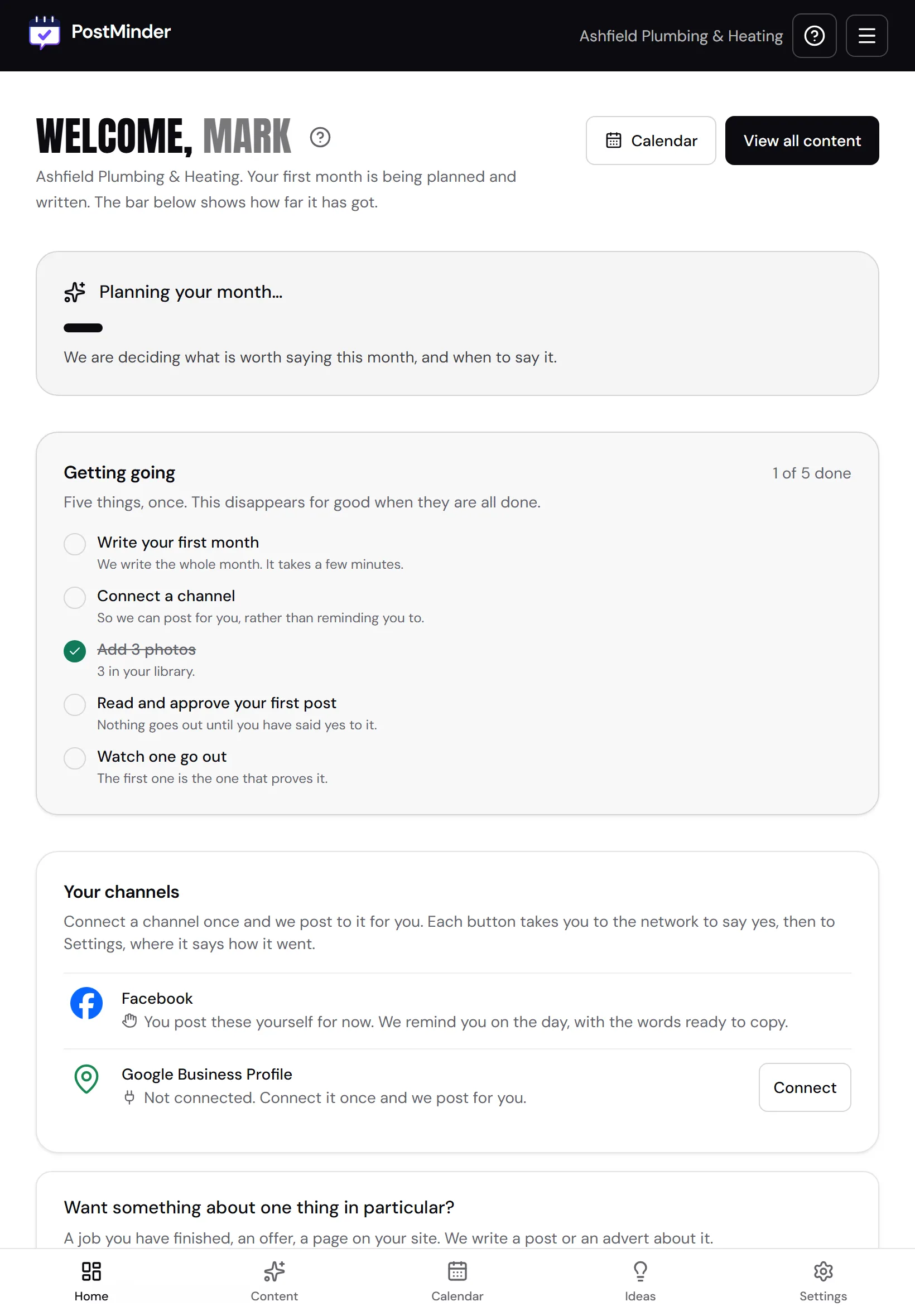
Finishing takes you to your dashboard with a bar at the top. First the month is planned, then each piece is written and saved as soon as it is done, and the bar counts the pieces really saved. Keep the page open until it is full. If it closes, writing carries on from where it stopped the next time you open your dashboard on the same device. Later months start from the "Write my month" button, and the size of each is limited by your monthly allowance.
8. A month, on a calendar
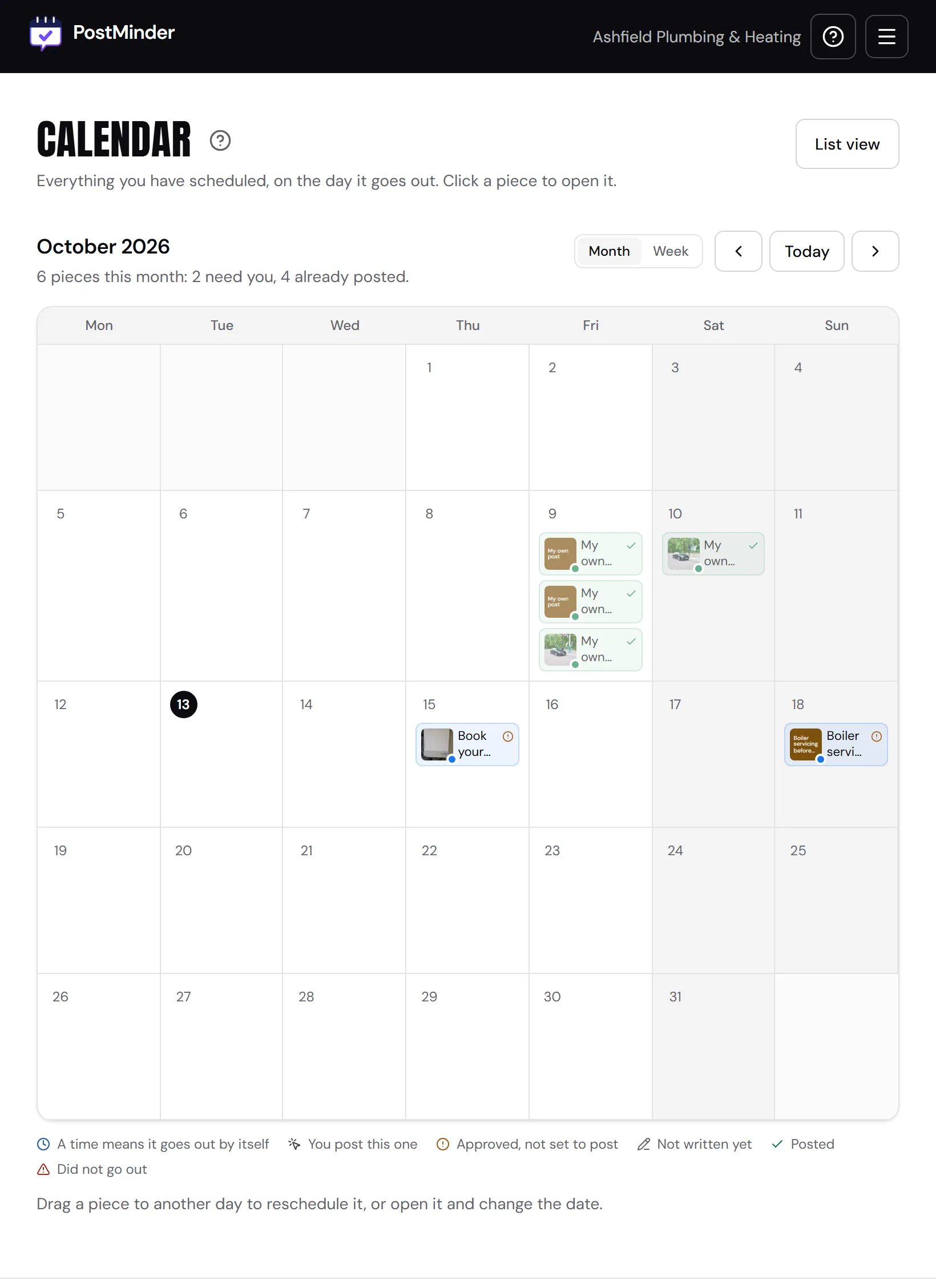
Every piece lands on a day, spread across the channels you chose. Drag a post to a different day if it suits you better, or open it and change the date. On a phone the calendar becomes a list, because dragging does not work from a finger.
9. Read it, change it, approve it
Open any piece to see exactly what would go out. Edit it yourself, or ask for shorter, warmer or more persuasive and we rewrite it. The first two rewrites of any piece are free. Each piece also says what photo to take, or for TikTok and YouTube what to film, and you add your own. On Business and Pro you can add a video you filmed instead: Instagram gets it as a reel, YouTube as a Short, and Facebook, LinkedIn, TikTok, X and Google Business take it too. Each post is your photos or one video, not both together, except on Instagram, where they can go in one post. Nothing leaves until you press Approve.
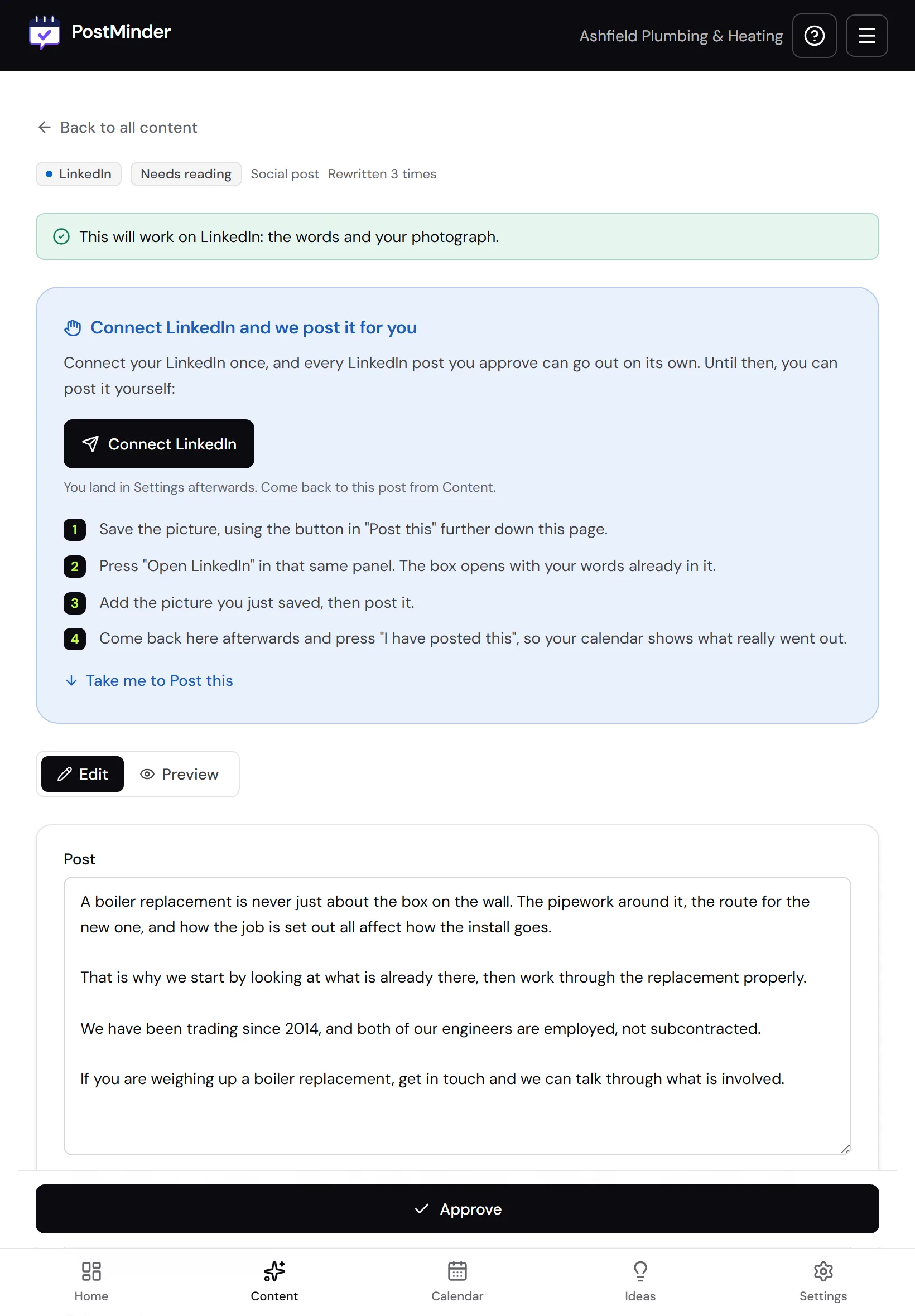
10. Post it
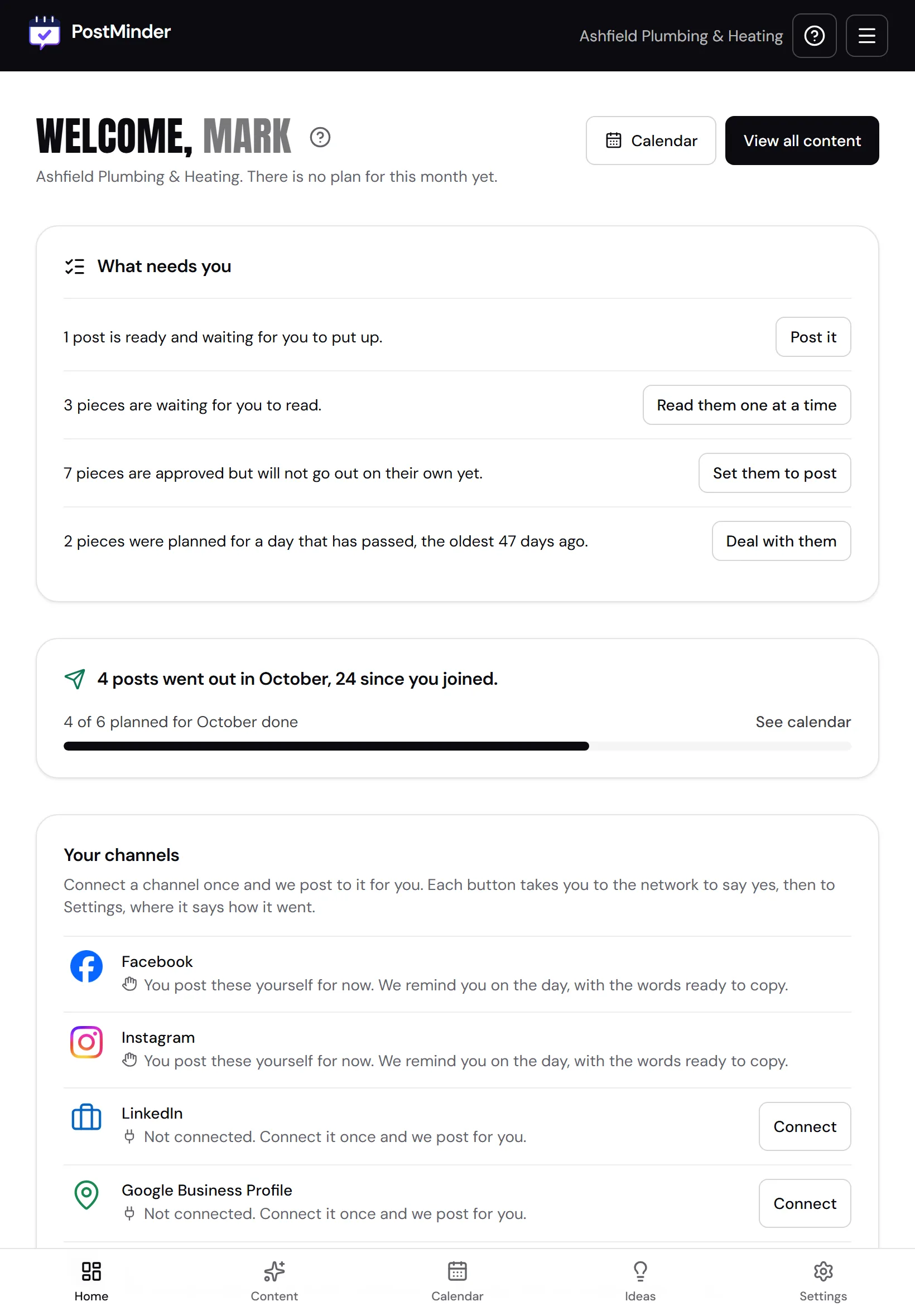
Approved pieces appear on the dashboard on the day they are due, with "Post it" beside each one. Posting it for you already works for Facebook, Instagram, LinkedIn, TikTok, YouTube and Google Business Profile: connect the account in Settings, choose "Post it for me", and it goes out on the day without you. X posts for you too on every paid plan. A post with a link posts itself on Pro, up to 30 a month. Beyond that, and on other plans, it is one tap to send. Anywhere else, for now, the caption is on your clipboard and we open the right place to paste it.
Still stuck?
The help page answers the things people get stuck on once they are up and running: fixing something PostMinder got wrong about your business, changing when your posts go out, and what counts against your monthly allowance.